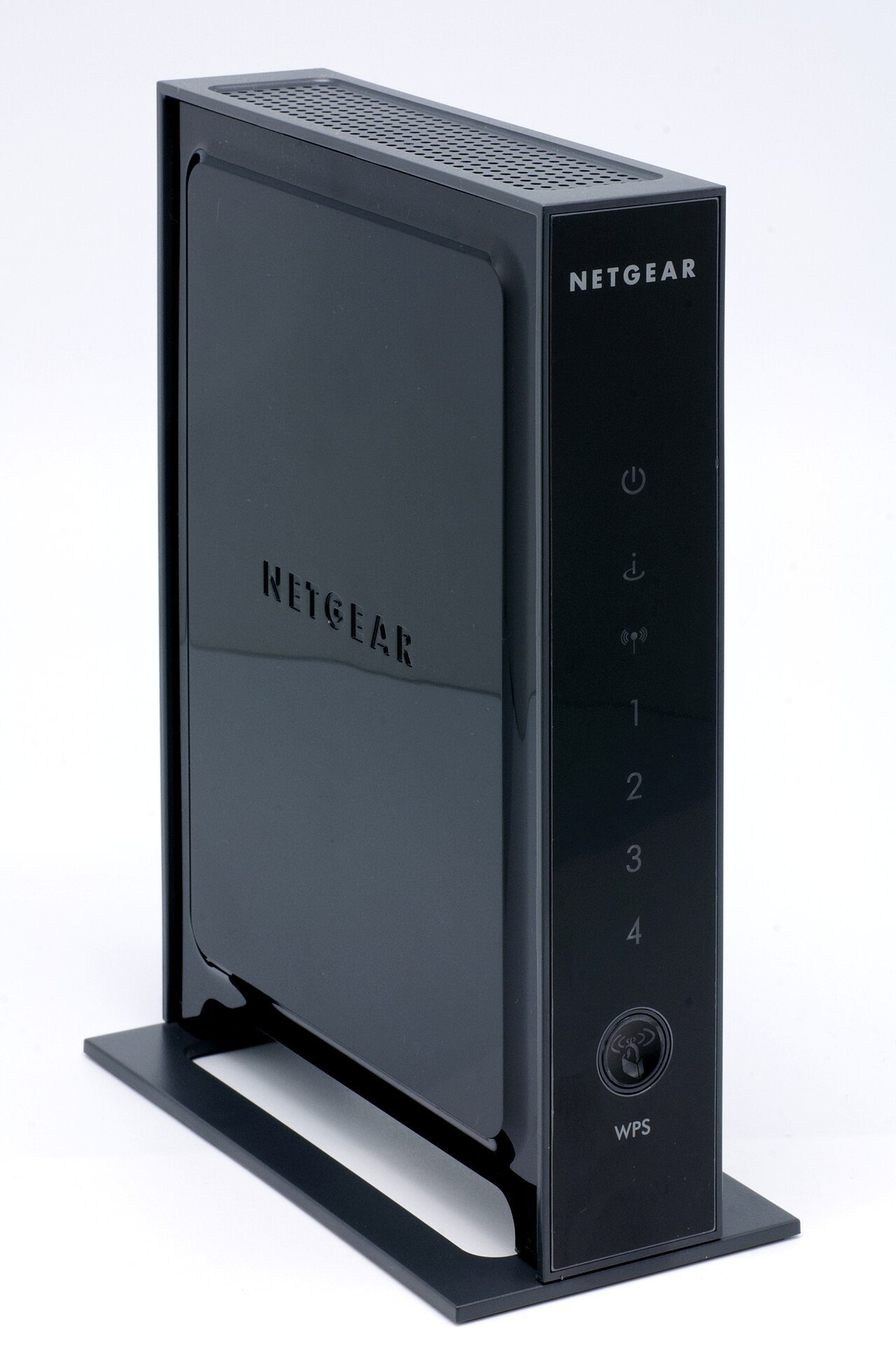
There are few things more frustrating than being in the middle of a video call, a movie, or an online game and suddenly losing your Wi-Fi connection. If this keeps happening every few minutes, you are dealing with a very common home networking problem, and the good news is that most causes are easy to diagnose and fix without calling a technician.
Common Causes of Frequent Wi-Fi Disconnects
Before jumping into fixes, it helps to understand what is actually going on. A router that drops its connection repeatedly is usually struggling with one of the following issues:
- Signal interference from other electronics, neighboring networks, or thick walls
- Overheating from being placed in an enclosed space or stacked with other devices
- Outdated firmware that has not been patched with stability fixes
- Too many connected devices overloading the router’s capacity
- A failing router that is simply reaching the end of its usable life
- ISP-side issues that have nothing to do with your equipment at all
Step 1: Restart Your Router and Modem
It sounds obvious, but a simple power cycle resolves a surprising number of connectivity issues. Unplug both your modem and router, wait a full 30 seconds, then plug the modem back in first. Once its lights stabilize, plug the router back in. This clears temporary memory errors that build up over days or weeks of continuous operation.
Step 2: Check for Overheating
Routers generate heat, and if yours is tucked inside a cabinet, behind a TV, or stacked under other equipment, that heat has nowhere to go. Overheating causes routers to throttle performance or drop connections entirely as a protective measure. Move your router to an open, well-ventilated spot, ideally elevated and away from direct sunlight.
Step 3: Change Your Wi-Fi Channel
If you live in an apartment building or a densely packed neighborhood, dozens of nearby networks may be competing for the same wireless channels. This congestion causes dropped connections, especially on the 2.4GHz band. Log into your router’s admin panel and look for wireless settings, then try switching to a less crowded channel, or set the channel selection to “Auto” so the router picks the best one automatically.
Step 4: Update Your Router’s Firmware
Manufacturers regularly release firmware updates that fix exactly this kind of instability. Check your router admin page for a “Firmware Update” or “System Update” section, or visit the manufacturer’s support site and search for your specific model number. Keeping firmware current is one of the most overlooked fixes for intermittent drops.
Step 5: Reduce the Number of Connected Devices
Every smart device in your home, from your phone to your smart thermostat to your kids’ tablets, pulls a small amount of processing power from your router. Older or budget routers can become overwhelmed when 15 or more devices are connected simultaneously. Disconnect devices you are not actively using, or consider upgrading to a router rated for a higher device count if your household has grown.
Step 6: Test With a Wired Connection
Plug a laptop directly into your router with an Ethernet cable and see if the disconnects still happen. If the wired connection is rock solid but Wi-Fi keeps dropping, the problem is isolated to your wireless radio or interference, not your internet service itself. This test alone can save you a frustrating call to your ISP for a problem they cannot fix.
Step 7: Reset the Router to Factory Settings
If none of the above steps help, a factory reset can clear out corrupted configuration settings that build up over time. Look for a small reset button on the back of the router, usually requiring a paperclip to press and hold for about 10 seconds. Keep in mind this will erase your custom Wi-Fi name and password, so be ready to set those up again.
When It’s Time to Replace Your Router
Routers typically last three to five years before performance starts noticeably declining. If your router is older than that, has been reset and updated with no improvement, and still drops connections daily, it may simply be worn out. Investing in a newer model with better range and more stable firmware is often cheaper in the long run than continuing to troubleshoot aging hardware.
Final Thoughts
Frequent Wi-Fi disconnects are almost always solvable without professional help. Start with the simple fixes, a restart and a cooler location, before moving to firmware updates and channel changes. If you have worked through every step here and the problem persists, contacting your internet provider to check for line issues on their end is the next logical move.