A router that reboots itself every hour, or even every few minutes, turns your entire home network into an unreliable mess. Every restart means 60 to 90 seconds with no internet at all, repeated throughout the day. This is a genuinely fixable problem in most cases, and this guide covers the most common causes in order of likelihood.
Why Routers Reboot Themselves
Unlike a manual restart you trigger on purpose, a self-restarting router usually signals one of these underlying issues:
- Power supply problems, including a failing adapter or unstable outlet
- Overheating that triggers an automatic safety restart
- Firmware bugs or a corrupted firmware installation
- Memory overload from too many connected devices or active connections
- A failing internal component as the router nears end of life
Step 1: Check the Power Adapter and Outlet
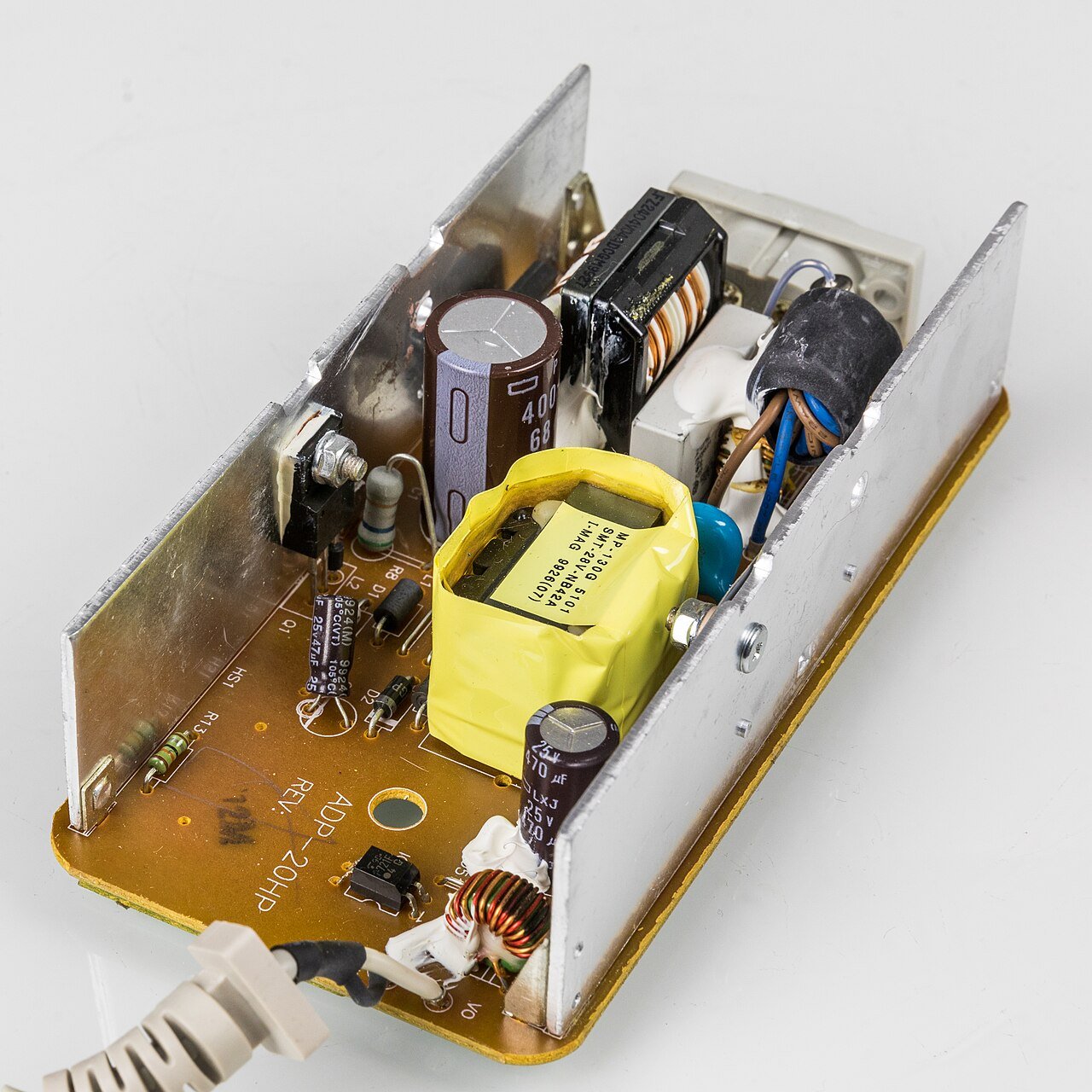
Start with the simplest possible cause. A loose or damaged power adapter can cause intermittent power loss that looks exactly like a self-restart. Wiggle the power cable gently at both the router and the wall end while watching the lights; if they flicker, you’ve found your culprit. Try plugging the router into a different outlet entirely, ideally one not shared with high-draw appliances, to rule out a power delivery issue.
Step 2: Feel for Overheating
Carefully touch the top of your router, or check if it feels unusually hot compared to normal. Many routers have a built-in thermal protection feature that forces a restart if internal temperatures climb too high, which is actually the device protecting itself from damage. Ensure your router has open space around it, is not stacked with other electronics, and is away from direct sunlight or heating vents.
Step 3: Check for a Firmware Update
Random reboots are a known symptom of firmware bugs, and manufacturers frequently release updates specifically to fix stability issues like this. Log into your router’s admin panel, navigate to the firmware or system update section, and install any available update. If you’re unsure how to access this, search for your exact router model plus “firmware update” for manufacturer-specific instructions.
Step 4: Reduce the Number of Active Connections
Routers have a limited amount of memory for tracking active network connections. Heavy torrenting, certain online games, or dozens of smart home devices maintaining constant connections can overwhelm a router’s memory and trigger a protective restart. If you suspect this, try disconnecting non-essential devices temporarily and see if the reboots stop.
Step 5: Perform a Factory Reset
Corrupted configuration settings, built up over months or years of changes, can cause instability that a simple restart doesn’t fix. A factory reset wipes the slate clean. Hold the reset button for about 10 seconds, then reconfigure your network name, password, and any custom settings from scratch.
Step 6: Test With Minimal Configuration
After a factory reset, avoid immediately re-enabling every custom feature you had before, things like port forwarding, QoS settings, or parental controls. Run the router with default or minimal settings for a day or two first. If the restarts stop, you can then reintroduce custom settings one at a time to identify which specific feature was causing instability.
Step 7: Check for Interference-Related Crashes
In rare cases, extremely strong interference from certain wireless devices, or even a malfunctioning smart home gadget flooding the network, can cause a router’s wireless radio to crash and trigger a restart. If you’ve recently added a new smart device around the time the reboots started, try disconnecting it temporarily to test for a connection.
When the Router Itself Is Failing
If you’ve tried a new outlet, confirmed firmware is current, performed a factory reset, and the router still restarts randomly, the hardware itself, likely the power supply circuit or memory chip, may simply be failing. This is especially likely if your router is more than four or five years old. At that point, replacing the unit is typically more cost-effective than continuing to troubleshoot aging hardware.
Final Thoughts
Self-restarting routers are frustrating but almost always traceable to power, heat, firmware, or memory overload. Work through the steps in order, starting with the power adapter since it’s the easiest to check, and you’ll usually identify the cause within an hour of focused troubleshooting.