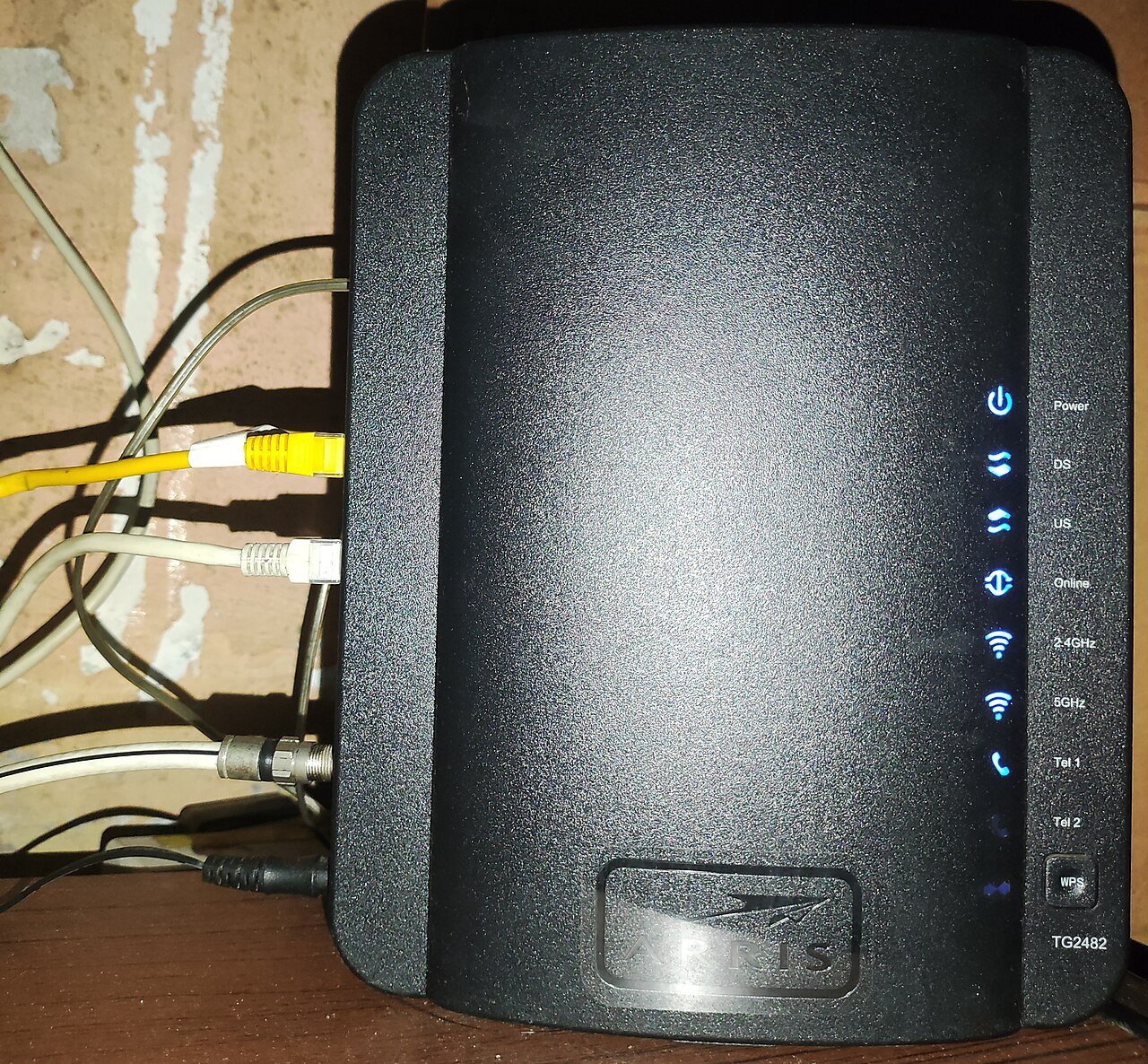
Connecting a router to a modem is the foundation of any home network, yet it is a step many people get slightly wrong, leading to confusing connection issues later. This guide explains the correct way to connect the two devices and troubleshoot common problems along the way.
Understanding the Difference Between a Modem and a Router
A modem connects your home to your internet service provider, translating the signal coming from outside (cable, fiber, or DSL) into a format your home network can use. A router, on the other hand, takes that connection and distributes it to multiple devices in your home, both wired and wirelessly. Some devices combine both functions into a single unit, often called a gateway.
What You Will Need
You will need your modem, your router, an Ethernet cable (usually included with your router), and access to power outlets for both devices. If your ISP provided a combo modem-router unit, you may need to set it to “bridge mode” before connecting your own separate router, which disables its built-in router functions.
Step 1: Power Off Both Devices
Before making any connections, unplug both the modem and the router. This prevents any configuration conflicts and ensures a clean startup sequence once everything is connected.
Step 2: Connect the Modem to the Router
Take an Ethernet cable and connect one end to the output port on the modem (sometimes labeled “Ethernet” or “LAN”). Connect the other end to the port on your router labeled “WAN” or “Internet.” This port is almost always visually separated from the other LAN ports on the back of the router.
Step 3: Power On the Modem First
Plug in and turn on the modem first, then wait about one to two minutes for its lights to stabilize. Most modems have an indicator light that shows when an active internet connection has been established, often labeled “Online” or showing a steady green light.
Step 4: Power On the Router
Once the modem’s connection light is stable, plug in and power on the router. Wait another minute or two for it to fully boot up and establish a connection with the modem. You should see the router’s internet or WAN light turn solid, indicating a successful connection.
Step 5: Connect Your Devices
With both devices powered on and connected, you can now connect your computers and phones to the router’s Wi-Fi network, or use additional Ethernet cables to connect devices directly to the router’s LAN ports.
Troubleshooting: No Internet After Connecting
If you do not have internet access after following these steps, first confirm the modem itself has an active connection by checking its status lights or logging into its interface if accessible. If the modem’s connection is fine but the router shows no internet, double-check that the cable is firmly connected to the WAN port specifically, not one of the regular LAN ports.
When You Have a Combo Modem-Router Unit
If your ISP’s device already includes router functionality and you want to use your own separate router, you generally need to either enable bridge mode on the ISP device through its settings, or simply connect your router to one of the LAN ports on the combo unit and accept a double NAT setup, which works for most home uses but can occasionally cause issues with certain applications.
Final Thoughts
Connecting a modem and router correctly comes down to using the right ports and powering devices on in the correct order. Once set up properly, this connection rarely needs to be touched again, forming the stable backbone of your entire home network.