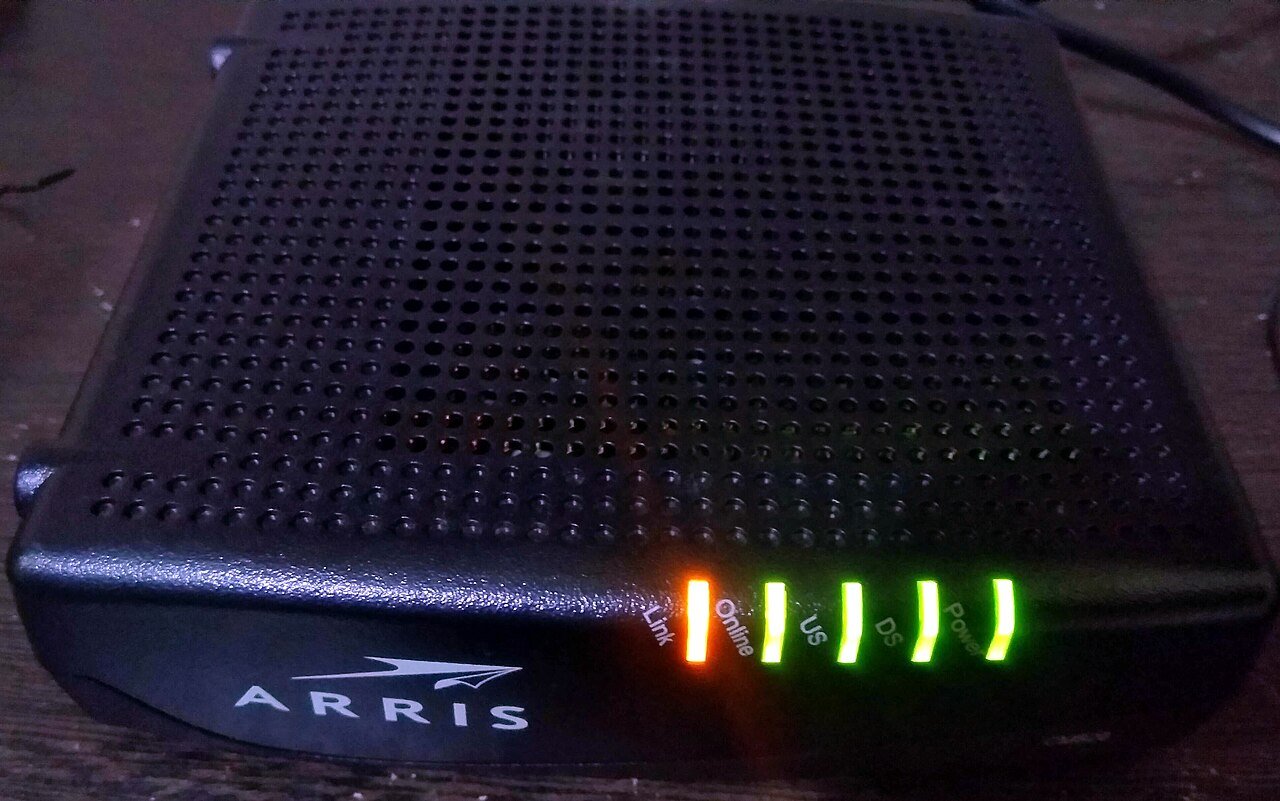
An orange, amber, or red light flashing on your router is your equipment’s way of telling you something is wrong. Unlike a steady green or blue light that signals normal operation, a blinking orange indicator almost always points to a connectivity problem between your router and your internet service. Here is how to read the signal and fix it.
What an Orange Light Usually Means
Most consumer routers use orange or amber lights to represent a degraded or failed state. Depending on the brand, this can mean:
- No signal is being received from your internet service provider
- The modem-to-router connection has failed or is unstable
- The router is stuck in a reduced-bandwidth or recovery mode
- A firmware update is in progress or failed partway through
- The device is overheating and throttling itself
Because the exact meaning varies by manufacturer, it is worth a quick search for your specific model plus “orange light meaning” to confirm, but the troubleshooting steps below apply broadly regardless of brand.
Step 1: Check the Cable Connections
Start with the physical basics. Make sure the cable running from your modem to your router’s WAN or Internet port is firmly seated on both ends. A loose or partially disconnected cable is one of the most common causes of an orange light, and it is also the easiest to fix. If you have a spare Ethernet cable, swap it in to rule out a damaged cable.
Step 2: Restart the Modem First, Then the Router
Power cycling your equipment in the correct order matters. Unplug the router first, then the modem. Wait about 30 seconds, plug the modem back in, and give it two to three minutes to fully reconnect to your provider’s network (you’ll usually see its lights turn solid or green). Only then plug the router back in. Restarting in the wrong order, or restarting them at the same time, often fails to resolve the issue because the router tries to reconnect before the modem is ready.
Step 3: Confirm There Isn’t an Outage
Before assuming your hardware is at fault, check whether your internet provider is experiencing an outage in your area. Most providers have a status page or an app that shows real-time service alerts. You can also use your phone’s mobile data to check social media or community forums, since widespread outages are often reported quickly by other affected customers.
Step 4: Inspect the Coaxial or Fiber Line
If you have cable or fiber internet, the connection from the wall outlet to your modem matters just as much as the modem-to-router link. Loose coaxial connectors, bent fiber lines, or a splitter that is degrading the signal can all trigger a persistent orange light. Tighten all coaxial connections by hand and avoid using unnecessary splitters, which weaken signal strength.
Step 5: Factory Reset as a Last Resort
If the orange light persists after confirming cables are secure and there is no outage, a factory reset can clear corrupted settings. Hold the reset button on the back of the router for about 10 seconds. Remember that this erases your custom network name and password, so you will need to reconfigure Wi-Fi afterward using the default login printed on the router’s label.
Step 6: Check for a Failed Firmware Update
Occasionally, an orange or flashing light appears because a firmware update was interrupted, perhaps by a power outage during the update process. If you suspect this, consult your manufacturer’s support site for instructions on manually reflashing firmware, which is usually done by downloading a file and uploading it through the router’s admin panel while connected directly via Ethernet.
When to Contact Your Internet Provider
If you have confirmed all cables are secure, restarted equipment in the correct order, and ruled out a local outage, the problem is likely on your provider’s side, such as a line issue between their network and your home. At this point, it is reasonable to call support and describe the exact light pattern you are seeing, since technicians can often diagnose signal-level problems remotely.
Final Thoughts
A blinking orange light is unsettling but rarely permanent. In most cases, a careful cable check combined with a properly sequenced restart resolves the issue within minutes. If the light remains after working through every step here, the problem has moved beyond what home troubleshooting can fix, and it’s time to get your provider involved.