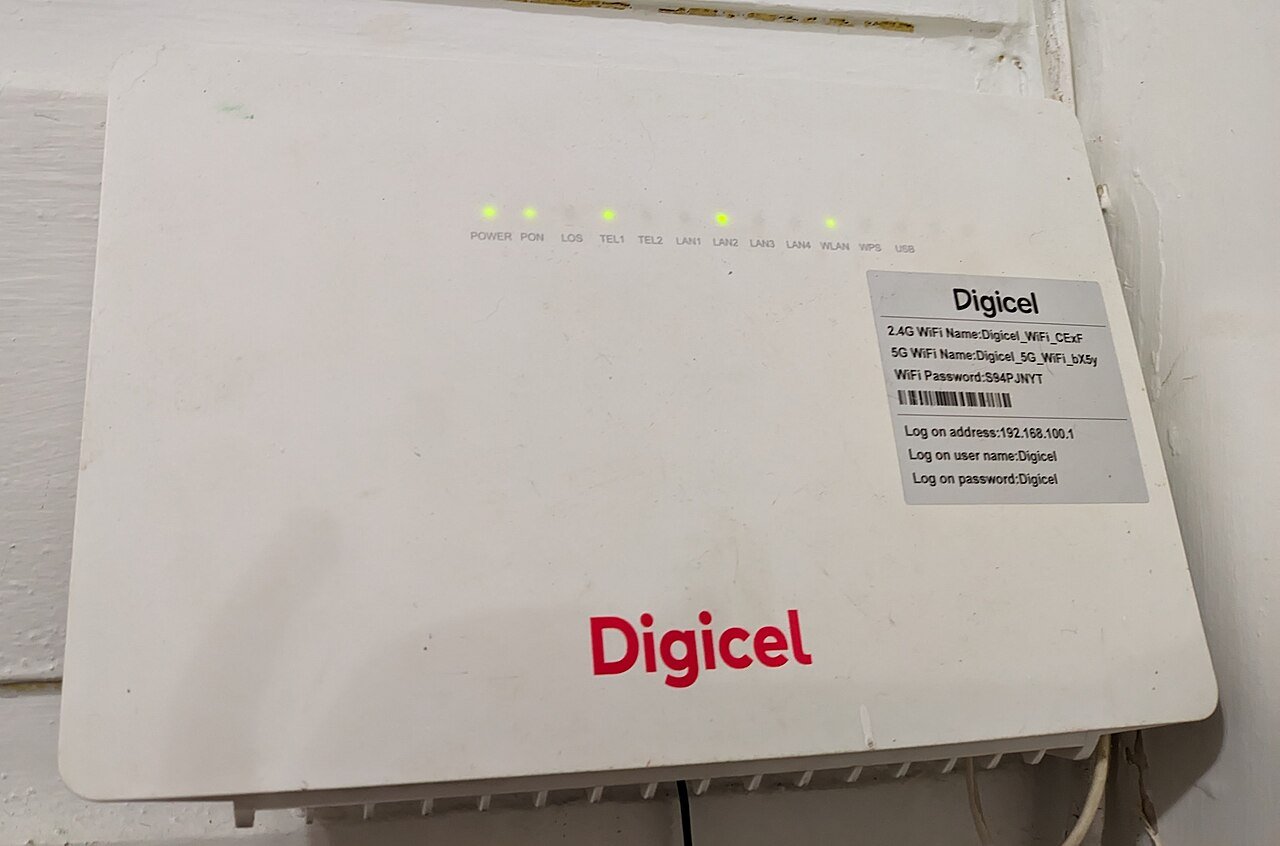
If your household has several people streaming, gaming, and video calling at the same time, you’ve probably noticed that everything slows down when the network gets busy. Quality of Service, or QoS, is a built-in router feature that lets you decide which devices and activities get priority, so the things that matter most stay smooth even when the network is under heavy load.
What Is QoS?
QoS stands for Quality of Service. It’s a traffic management feature found in most modern routers that allows you to allocate bandwidth intelligently instead of letting every device compete equally. Without QoS, a large download on one device can slow down a video call on another, even if there’s technically enough total bandwidth for both.
1. Access Your Router’s QoS Settings
Log into your router’s admin panel, usually by typing its IP address into a browser. Look for a section labeled “QoS,” “Quality of Service,” “Traffic Management,” or sometimes “Bandwidth Control,” depending on your router’s brand.
2. Identify Your Priority Devices
Make a short list of which devices or activities matter most in your household. Common priorities include a work laptop during business hours, a gaming console during evening play sessions, or a smart TV during movie nights.
3. Set Priority Levels
Most QoS interfaces let you assign priority levels (often labeled high, medium, and low) to specific devices by selecting them from a list or entering their IP or MAC address. Assign your priority devices to “high” and lower-priority devices, like smart home gadgets or devices doing large downloads, to “low.”
4. Use Application-Based QoS if Available
Some routers offer application-based QoS, letting you prioritize specific types of traffic, like gaming or video calls, across all devices rather than prioritizing a single device. This is especially useful if multiple people use the same device for different purposes throughout the day.
5. Set Bandwidth Limits for Less Important Devices
In addition to prioritizing important devices, some routers let you cap the bandwidth available to specific devices. This can be useful for guest devices or smart home gadgets that don’t need much speed but might otherwise consume more than their fair share.
6. Test and Adjust
After setting up QoS, monitor your network during busy periods to see if the changes made a noticeable difference. You may need to adjust priority levels over time as your household’s usage patterns change.
A Few Things to Keep in Mind
QoS manages how your existing bandwidth is distributed, it doesn’t increase your overall internet speed. If your connection is consistently maxed out even with QoS enabled, it may be worth considering an internet plan upgrade in addition to these settings.
Setting up QoS takes just a few minutes but can make a real difference in a busy, multi-device household, ensuring everyone gets a smooth experience even during peak usage hours.