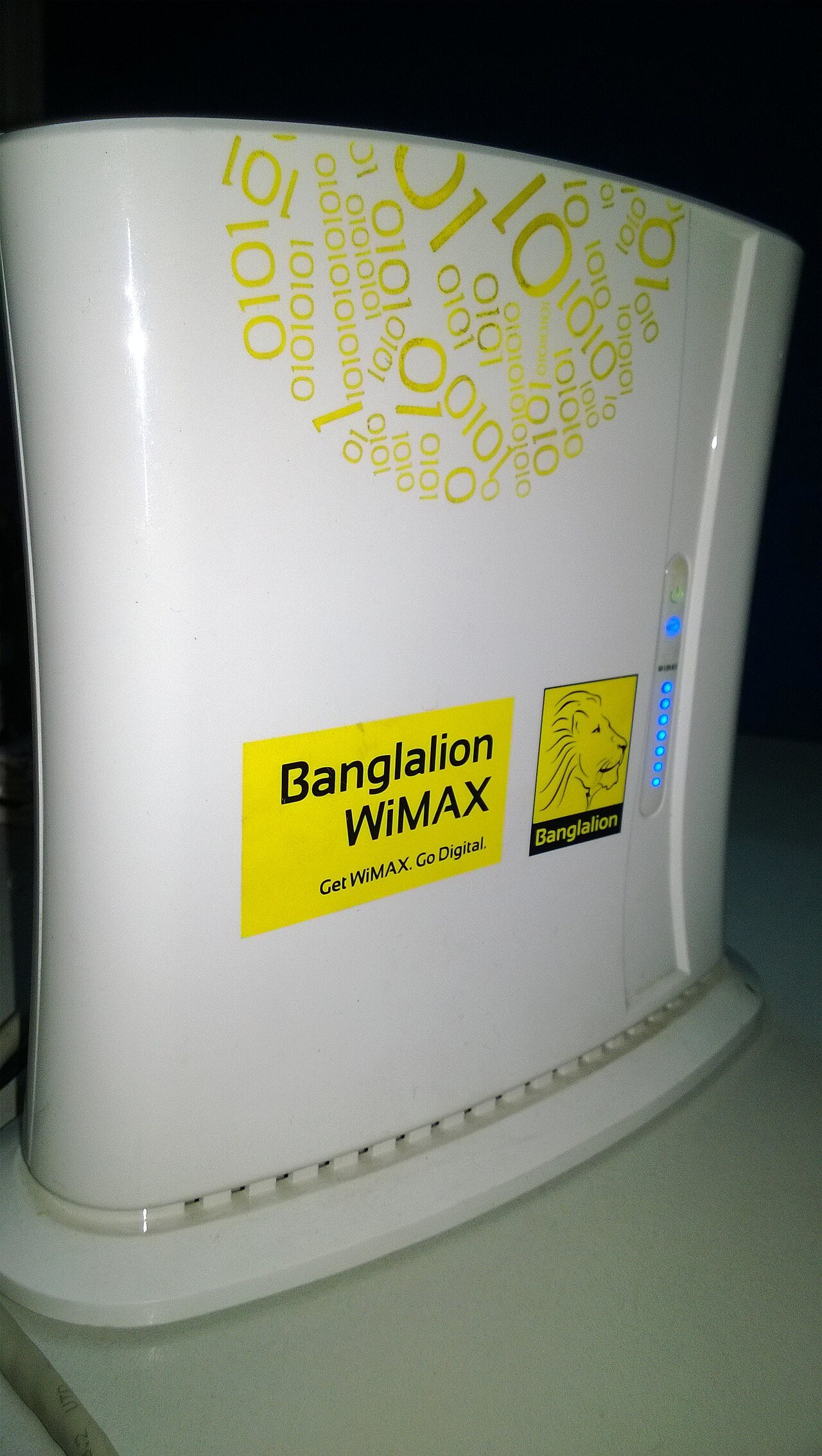
If your internet feels slower than it should, one of the first things worth checking is exactly how many devices are connected to your Wi-Fi network. Between phones, laptops, smart TVs, gaming consoles, and smart home gadgets, it’s easy to lose track, and an unexpected device could even mean someone is using your network without permission.
1. Check Through Your Router’s Admin Panel
The most reliable way to see connected devices is through your router’s own admin interface. Open a browser and type your router’s IP address (commonly 192.168.1.1 or 192.168.0.1) into the address bar, then log in with your admin credentials. Look for a section labeled “Connected Devices,” “Attached Devices,” or “Device List.” This will show you every device currently connected, often along with its device name and IP address.
2. Use Your Router’s Companion App
Many newer routers come with a mobile app that makes checking connected devices even easier than logging into the web interface. These apps often display device names, connection type (Wi-Fi or ethernet), and sometimes even real-time bandwidth usage per device.
3. Use a Network Scanning App
If you’d rather not log into your router directly, third-party network scanning apps can detect devices connected to your Wi-Fi from your phone or computer. These apps typically show device names, IP addresses, and manufacturer information, which can help you identify unfamiliar devices.
4. Look for Unfamiliar Device Names
Once you have a list of connected devices, go through it carefully. Most devices will have recognizable names like “John’s iPhone” or “Living-Room-TV,” but some may show up as generic manufacturer names or random strings of letters and numbers. If you see a device you don’t recognize, it’s worth investigating further.
5. What to Do If You Find an Unknown Device
If you spot a device you can’t identify, start by checking if it matches any smart home gadgets, guest devices, or older devices you might have forgotten about. If you still can’t identify it, the safest move is to change your Wi-Fi password immediately and reconnect only your known devices. This will disconnect any unauthorized users until you can review your settings more carefully.
6. Set Up a Guest Network for Visitors
To avoid confusion in the future, consider setting up a separate guest Wi-Fi network for visitors. This keeps your main network’s device list cleaner and adds a layer of security, since guests won’t have access to your primary network or the devices on it.
Why This Matters
Beyond security, knowing how many devices are connected helps explain slow speeds. Every connected device shares your available bandwidth, so a household with dozens of smart gadgets running simultaneously may need a stronger router or an upgraded internet plan to keep everything running smoothly.