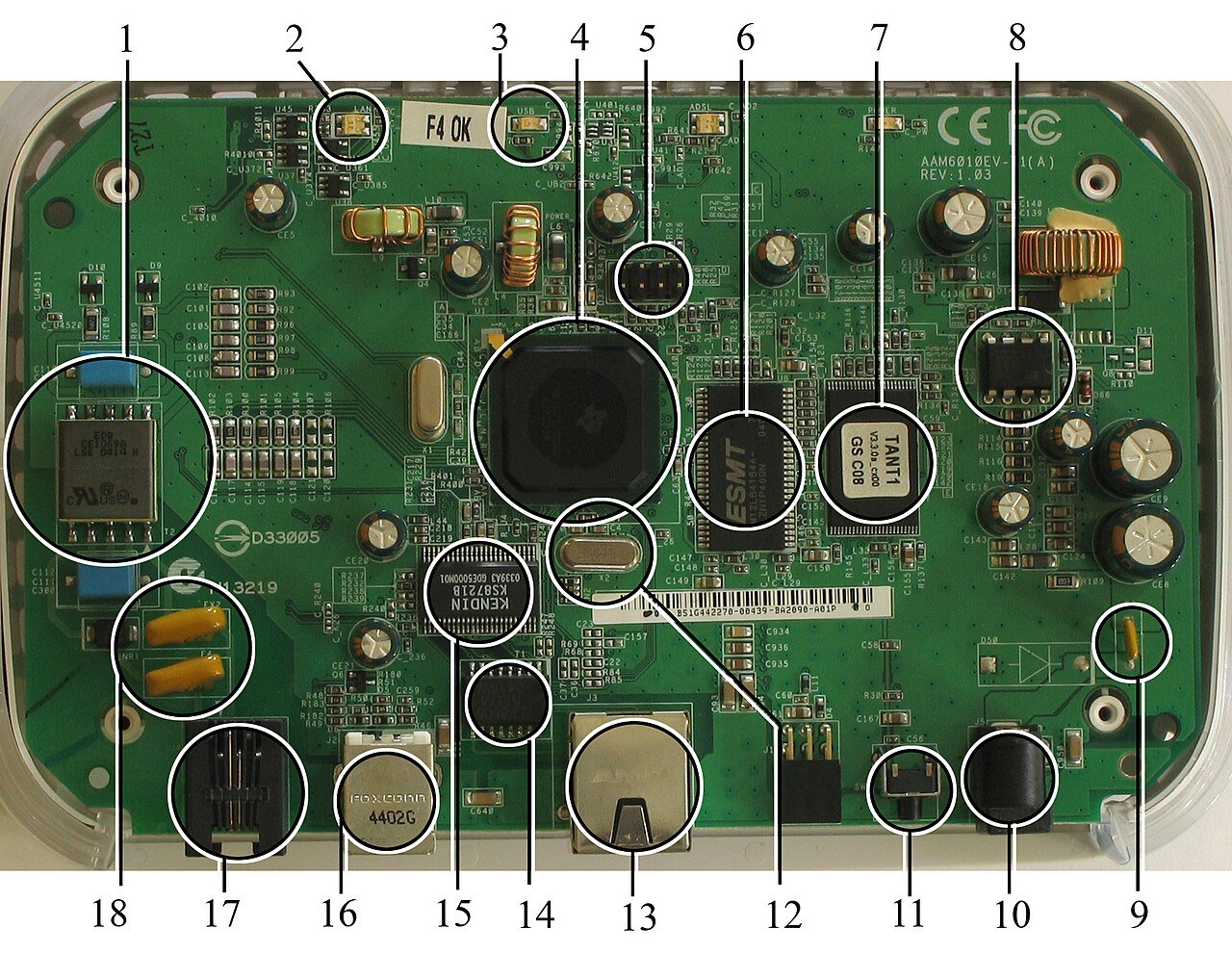
Firmware is the software that runs your router behind the scenes, and keeping it up to date is one of the most overlooked aspects of home network maintenance. Outdated firmware can lead to slower performance, missing features, and most importantly, security vulnerabilities that leave your network exposed. Here is how to check and update it properly.
What Firmware Actually Does
Think of firmware as the operating system of your router, similar to how your phone or computer runs an operating system. It controls everything from how your router manages Wi-Fi connections to how it handles security. Manufacturers regularly release firmware updates to patch security vulnerabilities, fix bugs, and sometimes add new features or improve performance.
Why Outdated Firmware Is a Real Risk
Security researchers regularly discover vulnerabilities in router software, and manufacturers respond by releasing firmware patches to close those gaps. A router running outdated firmware may have known security holes that have already been fixed for everyone else, leaving your network more vulnerable to unauthorized access than it needs to be.
How to Check Your Current Firmware Version
1. Find your router’s IP address. This is usually printed on a sticker on the router itself, often listed as something like 192.168.1.1 or 192.168.0.1.
2. Open a web browser and enter that address. This will take you to your router’s admin login page.
3. Log in with your admin credentials. If you never changed them, the default username and password are often printed on the same sticker as the IP address.
4. Locate the firmware or system information section. This is usually found under a tab labeled something like Administration, System, Management, or Advanced Settings, depending on your router’s brand.
5. Note the current firmware version number. This is typically displayed as a version number and sometimes a release date.
How to Check for Updates
Many modern routers include a built-in Check for Updates button directly within this same settings page, which will tell you if a newer version is available. If your router does not check automatically, you can visit the manufacturer’s official support website, search for your specific router model, and compare the latest available firmware version listed there to the version currently installed on your device.
How to Update Your Firmware
If your router has a built-in update feature, updating is usually as simple as clicking Update or Install and waiting a few minutes while the router downloads and installs the new firmware, then restarts automatically. If your router does not support automatic updates, you may need to manually download the firmware file from the manufacturer’s website and upload it through the admin settings page, following the specific instructions provided for your model.
Important Precautions Before Updating
- Never interrupt a firmware update once it has started, including unplugging the router or closing the browser window
- Make sure your device stays connected to power throughout the entire update process
- If possible, connect your computer to the router with an Ethernet cable during the update rather than relying on Wi-Fi
- Avoid updating firmware during a thunderstorm, when power interruptions are more likely
How Often Should You Check?
Checking for firmware updates once a month is a reasonable habit for most households. If your router supports automatic updates, it is worth enabling that feature so you do not have to think about it at all, while still occasionally confirming the update feature is actually functioning as expected.
What If Your Router No Longer Receives Updates?
Manufacturers eventually stop releasing firmware updates for older router models, usually after four to six years. If you discover your router is no longer supported, that is a meaningful sign it may be time to start considering a replacement, since the device will only become more vulnerable to security risks over time without future patches.