Resetting a router to its factory settings can resolve a surprising number of persistent issues, from forgotten passwords to strange configuration problems that will not go away. This guide explains when a factory reset makes sense, how to perform one safely, and what to do afterward.
What a Factory Reset Does
A factory reset erases all custom settings on your router and restores it to the exact state it was in when it left the factory. This includes your Wi-Fi name, password, any port forwarding rules, parental controls, and admin login changes. Everything returns to the manufacturer’s defaults.
When You Should Consider a Factory Reset
A factory reset is worth considering if you have forgotten your admin password and cannot log in, if your router is behaving erratically despite basic troubleshooting, if you are selling or giving away the router, or if you suspect a configuration setting is causing ongoing problems that you cannot identify.
Before You Reset: Back Up Important Settings
If possible, log into your router’s admin page beforehand and note down any custom settings you will want to recreate, such as port forwarding rules, your current Wi-Fi name and password, and any static IP reservations. Some routers also offer a “Backup Configuration” option that saves a file you can restore later, though this is less commonly used by average home users.
Step 1: Locate the Reset Button
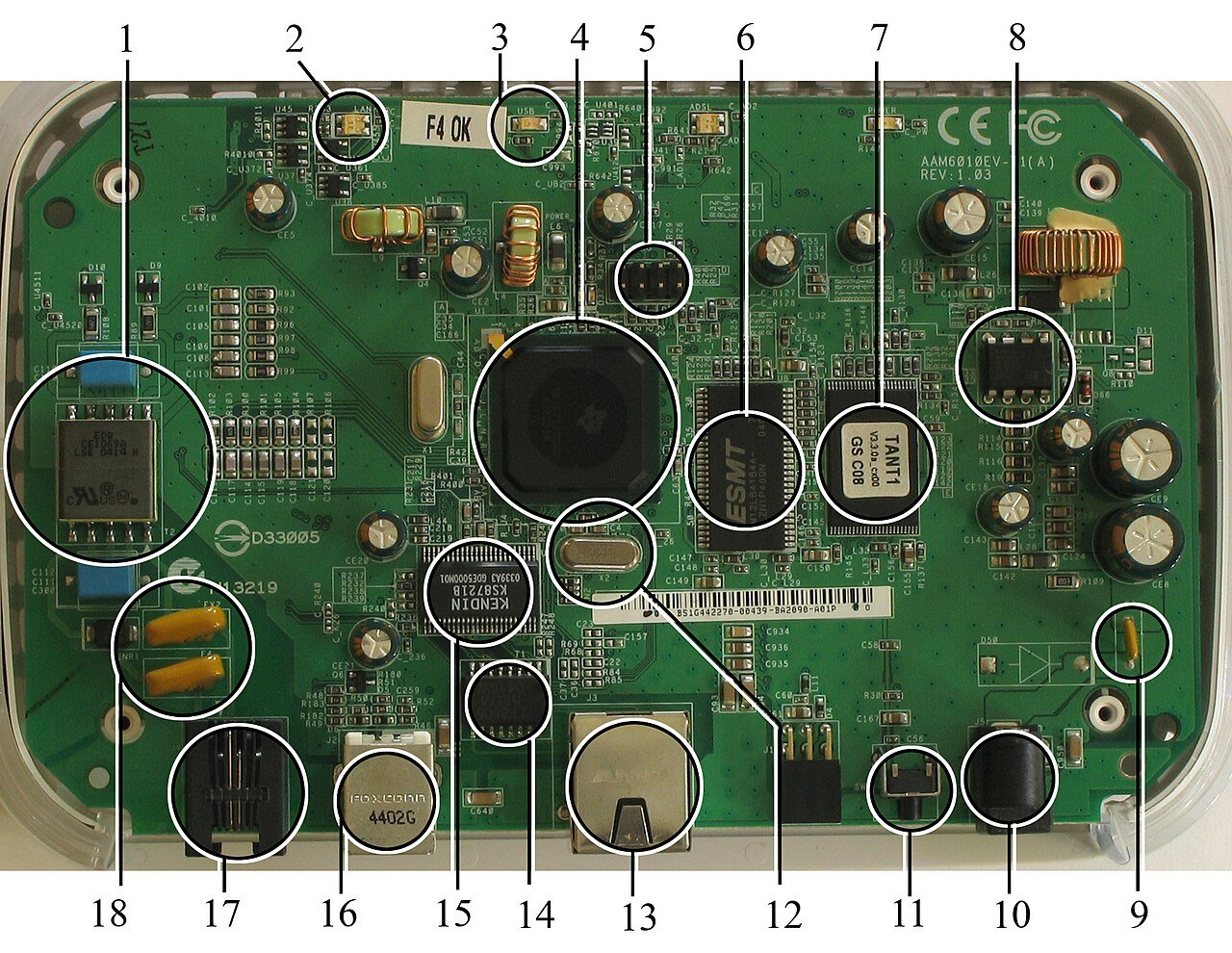
Most routers have a small, recessed reset button on the back or bottom of the device, usually labeled “Reset.” It is intentionally hard to press by accident, requiring a pin or paperclip to activate.
Step 2: Press and Hold the Reset Button
With the router powered on, press and hold the reset button for about ten seconds. You will typically see the lights on the router flash or change pattern, indicating the reset process has started.
Step 3: Wait for the Router to Restart
Release the button and allow the router to fully restart, which can take one to two minutes. The router will boot up with all factory default settings, including the original Wi-Fi name and password printed on its label.
Step 4: Reconnect Using Default Credentials
Connect to the router using the default Wi-Fi network name and password found on the sticker on the device. From here, you can access the admin page using the default login credentials, also usually printed on the same label.
Step 5: Reconfigure Your Settings
Once logged in, set up your router again from scratch: create a new Wi-Fi name and password, reconfigure any guest networks, re-add port forwarding rules, and restore any other custom settings you noted down earlier.
Step 6: Reconnect All Your Devices
Since the Wi-Fi name and password have changed back to factory defaults and then to your new custom settings, you will need to reconnect every device in your home to the new network.
What If the Reset Button Doesn’t Work?
If holding the reset button does not seem to work, double-check that you are holding it long enough, typically a full ten seconds, and that the router is powered on during the process. Some routers require holding the button while also powering the device on, so check your specific model’s instructions if the standard method fails.
Final Thoughts
A factory reset is a reliable way to resolve stubborn router issues or prepare a device for a new owner. While it means starting your configuration from scratch, the process itself only takes a few minutes, and most settings can be quickly restored afterward.